
Ever thought about capturing those jaw-dropping game moments right as they unfold? This guide walks you through five super simple steps to turn live action into instant highlights.
First up, record the game and slice it into chunks using a favorite tool. Next, turn those lively commentaries into text so you can see every play on paper. Then, dive into smart analysis to pick out the epic moves that fans will love.
With clear, step-by-step tips, you’ll soon be editing and sharing highlights faster than a buzzer-beater in overtime, keeping everyone hyped and in the moment.
How to Create Instant Highlights from Live Games: Step-by-Step Workflow
Break your work into five easy steps. First up is recording and splitting up your live game using OBS during a normal 4-hour match. OBS is a handy tool that captures every play and lets you mark the big, heart-pounding moments as they happen. Imagine saying, "I'm recording the game and marking those high-energy plays!"
Next, run an automated transcription on each segment. This part takes about 2 to 3 minutes per clip. It turns spoken game chatter into searchable text, so you can quickly find those ecstatic reactions. It’s like watching your game story unfold in written form almost instantly.
Then, let the AI do its magic with content analysis. In roughly 5 to 10 minutes, the AI scans through the transcripts to find epic plays, thrilling cheers, or even a funny call-out. Think of it as a digital scout that flags the moments that make your heart race.
After that, it’s time to create and fine-tune your clips. This editing stage takes between 15 and 30 minutes. Use the Edit Highlight Clips feature to pick the perfect start and finish points, adjust the clip length, set the right resolution, and even tweak the bitrate. Basically, you trim the content so only the wild, high-energy moments shine through.
Finally, share your polished clips on platforms like TikTok, YouTube Shorts, Instagram Reels, or your own website. This whole AI-assisted process wraps up in about 4.5 hours, compared to the usual 7 hours of manual work, saving you nearly 2.5 hours per stream. How cool is that?
Essential Hardware & Software for Instant Highlights from Live Games
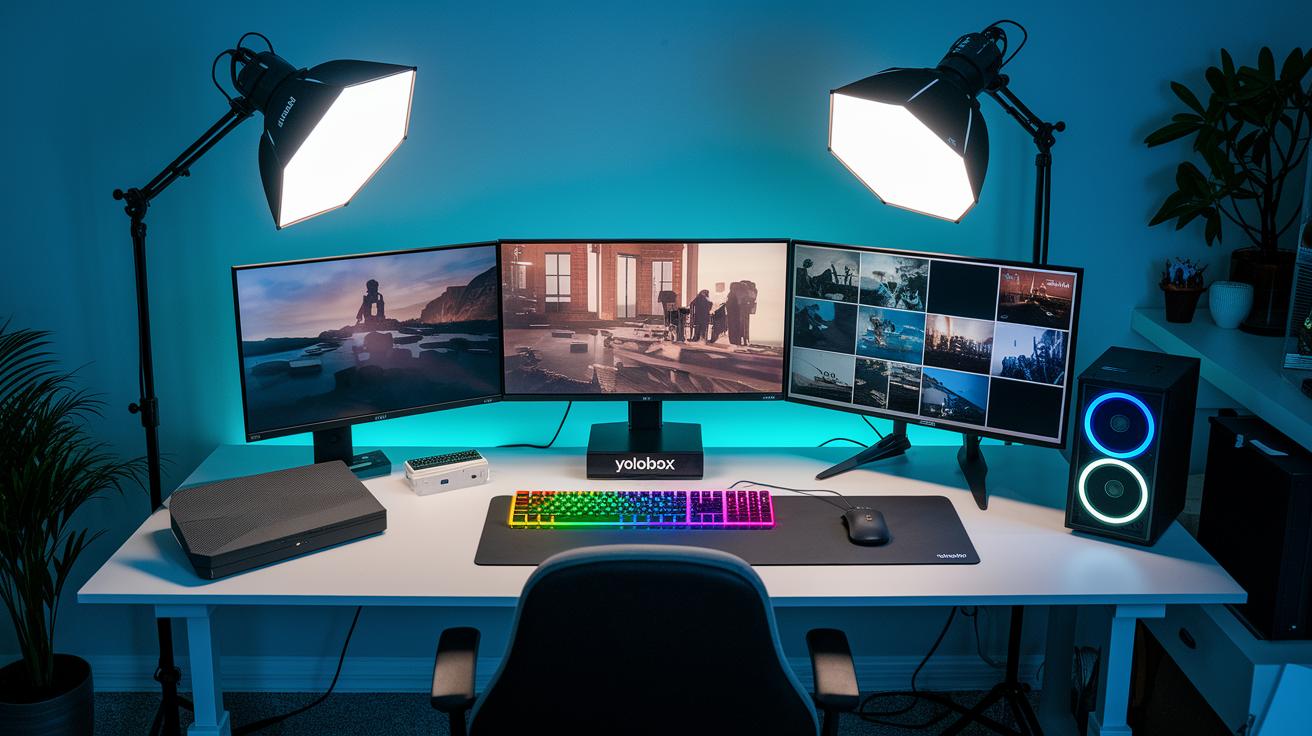
Getting those awesome game highlights live takes a rock-solid setup with the right hardware and software. The YoloBox Pro is a go-to tool for instant encoding and clipping, you can catch the game-winning plays as they happen with no lag. And when you’re on the move, the YoloBox Mini has your back with portable live encoding so you never miss the thrilling action.
OBS Studio is your best friend for recording and breaking your live stream into neat segments. It lets you tweak output options, switch up scenes, and mark those key moments. And when you add YoloCast Automated Scheduling, it fires off clip creation right on cue, building a replay system that keeps pace with every heart-pounding play.
For playback, the HTML5 Video Player teamed up with the 24/7 Live Stream feature makes sure your highlights are always ready. Plus, a solid audio setup is a must, adjust your mic’s position and gain to clearly capture every cheer and shout from the crowd.
Key components include:
- YoloBox Pro
- YoloBox Mini
- OBS Studio
- YoloCast Automated Scheduling
- HTML5 Video Player and 24/7 Live Stream features
Together, these tools create a seamless instant replay strategy that keeps you and your fans right in the middle of all the excitement.
Setting Up Your Live Game Capture Workflow
Start by fine-tuning OBS for smooth, low-delay recording. Use MP4 with H.264 and adjust your bitrate to handle fast game action. Imagine being a photographer, tweaking your gear just right to capture that perfect, game-changing moment.
Next, set up your scene collection in OBS like a well-planned playbook. With your scenes organized, you can quickly switch between camera angles to catch every twist of the game. Assign hotkeys to mark key moments instantly, one press might even shout "Goal!" when that epic play happens.
Remember, keeping your files organized is just as important. Use a naming system that includes game dates and timestamps, and build a simple folder structure from the start. Think of it as a play diagram that guides you to your best highlights in a flash.
Finally, integrate the HTML5 player into your workflow to preview clips in real time. This live check makes sure every vital moment is captured, speeding up your editing process and keeping up with the game’s pace.
Real-Time Clip Creation and Editing Techniques for Instant Game Highlights
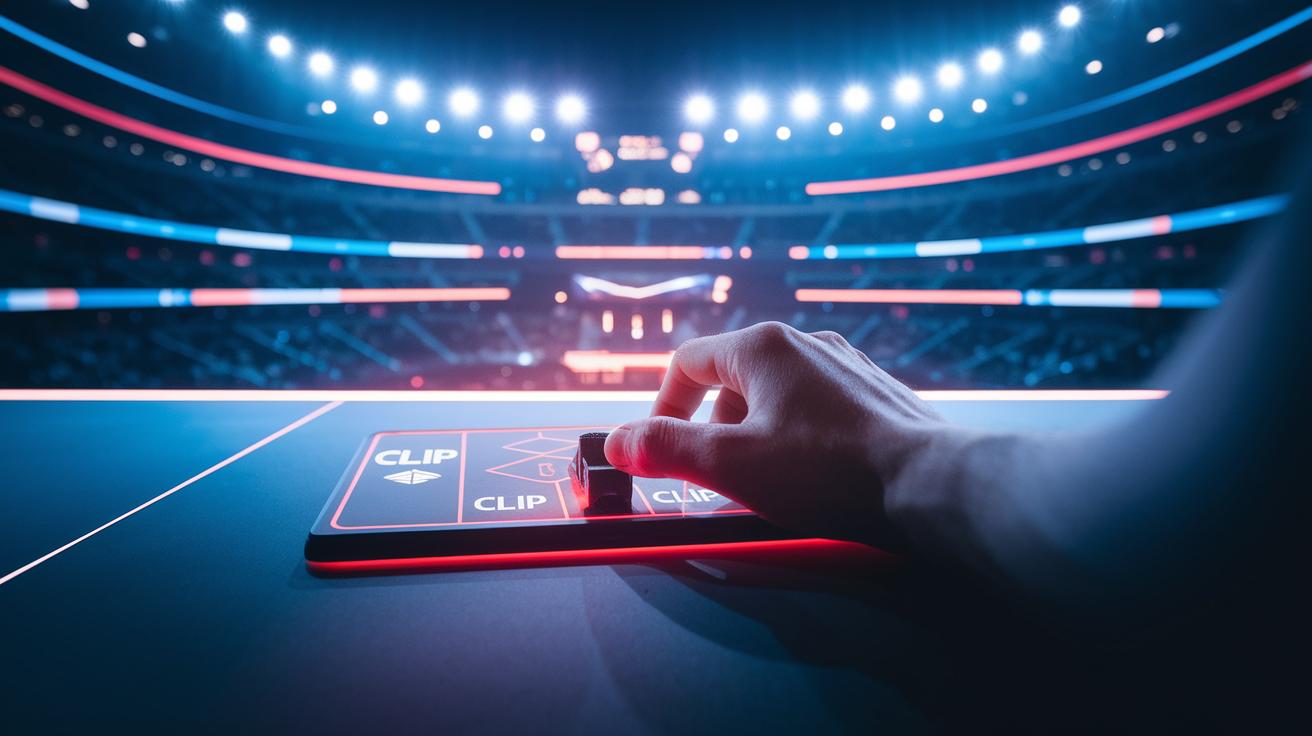
When you use the Edit Highlight Clips feature on your streaming tool, catching those unforgettable game moments is a breeze. As soon as the game heats up and you feel that surge of excitement, hit the clip button on your video player to mark the start of an amazing play. Then, when the crowd is roaring and the action is at its peak, press the button again to mark the end. This easy in-and-out trick lets you slice up your live feed into shareable highlights without missing a beat.
Think of it like snapping a quick photo of that game-winning shot, fast, sharp, and full of energy. As soon as your markers are set, your clip is automatically prepped for further edits. You can tweak things like the clip length, resolution, or even the file settings right on the spot. For example, you might say, "Let’s start with a crisp resolution and trim the clip to somewhere between 15 and 30 seconds for the perfect highlight reel." And if you're planning to share on platforms like TikTok, YouTube Shorts, or Instagram Reels, preset templates have got your back, ensuring your video always looks top-notch.
Using Edit Highlight Clips Feature
Find the clip button on your player interface. When something amazing happens, like a game-changing goal or a spectacular defensive play, hit it to mark the starting point. Then, once the excitement winds down, press it again to set the endpoint. Save your clip and check it out immediately on the built-in HTML5 player. This quick method keeps your editing fast and makes sure you never miss the thrill of the game.
Customizing AI Prompts for Highlight Detection
Mix AI prompts into your workflow to catch those standout moments automatically. For instance, try these cues:
| Prompt | What It Does |
|---|---|
| Identify epic gameplay moments | Finds those game-changing plays |
| Detect high-energy reactions | Highlights moments bursting with emotion |
| Extract tutorial segments | Picks out key coaching or instructional bits |
| Generate social-media-ready captions | Creates perfect captions that match your clip |
These prompts help the AI scan the game and flag all the exciting parts. It then sends back useful insights so you can fine-tune each clip in real time, keeping you right in sync with the game’s energy.
Exporting and Rendering Instant Highlights from Live Games
Time to share those epic game moments? First, pick a format that works great on the web and social media. We recommend MP4 with H.264 encoding and a resolution of 720p or 1080p. This choice makes your clips smooth and professional on every screen. Aim for a bitrate between 5 and 10 Mbps so you get clear HD quality without giant file sizes.
Once you finish editing, render your clip with these settings and get it ready to share on your website or social platforms. A neat trick is to embed your clip using an HTML5 Video Player. This method speeds up your action reel production and even lets you add fun overlays, like a Web URL overlay or Document Upload overlays, for extra context.
Here’s a handy snippet of code:
<video controls width="720">
  <source src="your_highlight.mp4" type="video/mp4">
  Your browser does not support the video tag.
</video>
This simple code makes your clip accessible and plays smoothly in any browser. Feel free to tweak the width to 1080 and add overlay code to match your site’s style.
Troubleshooting Common Issues in Instant Highlight Creation from Live Games

When you’re in the middle of catching live game highlights, sometimes glitches can throw off your swing. If the clip button in your HTML5 video player stops working, first check for updates and refresh the interface before you capture the next big moment. Keeping your browser and player settings current helps you avoid unplanned breaks in the action.
Here are some common issues and quick fixes:
- Clip button dead: Reload the player interface and make sure your browser supports the latest features.
- AI transcription mix-ups: If noisy audio makes the commentary hard to follow, try adjusting your microphone and cutting down on background noise.
- Skipped frames or lag: Tweak your encoding settings and confirm your network is steady to keep your recording smooth.
- Missing segments: Stick with a consistent file numbering or naming system so you don’t lose any key parts.
Staying on top of these hiccups keeps your workflow smooth and the live game excitement alive. By fine-tuning your hardware, optimizing audio, and keeping your files organized, you can handle any glitch and make sure every epic play gets captured.
Time-Saving Tips for Rapid Live Game Highlight Production
One smart way to speed things up is using preset clip templates. Imagine setting one up with a 15-second intro to build excitement, a 30-second buildup for the main play, and a 15-second wrap-up. It cuts down on the hassle of starting fresh every time. Think of it like crafting a mini highlight reel before the big moment hits.
Another trick is to use hotkeys for marking your clips. Just press one key to kick off the clip and another to stop it, ensuring you never miss that game-changing play. It’s quick and keeps you locked in on the action.
Add in YoloCast’s automated scheduling to your mix. This neat tool automatically triggers clip creation at the perfect moments in your stream. Once done, batch-export settings let you prep a bunch of clips for TikTok, YouTube Shorts, and more, all in one go.
Weave these tips into your live clip creation and editing routine. This way, your highlights flow seamlessly while you boost your speed and reach across multiple platforms.
| Tool | Benefit |
|---|---|
| Preset Clip Templates | Speeds up setup time |
| Hotkeys | Allows instant clip marking |
| YoloCast Scheduling | Automates clip creation |
| Batch-Export | Makes multi-platform uploads simple |
Final Words
In the action, we broke down the process of creating instant highlights from live games step-by-step guide. We covered everything, from recording with OBS Studio to leveraging AI prompts for in-game edits. We also explored the ideal hardware setup, streamlined export tips, and sorted out common issues. Each phase is designed to make capturing your favorite moments a fast and fun experience. Keep these pointers in mind, and enjoy turning live plays into unforgettable clips.
FAQ
What is the best app for making sports highlight videos?
The best app for making sports highlight videos means using tools like YoloBox Pro or Mini paired with OBS Studio. They let you capture, clip, and quickly share your favorite game moments with ease.
How do you create and share stream highlights?
Creating and sharing stream highlights means recording your gameplay, using clip buttons and hotkeys to mark key plays, and applying AI prompts to pinpoint epic moments for fast editing and social media uploads.